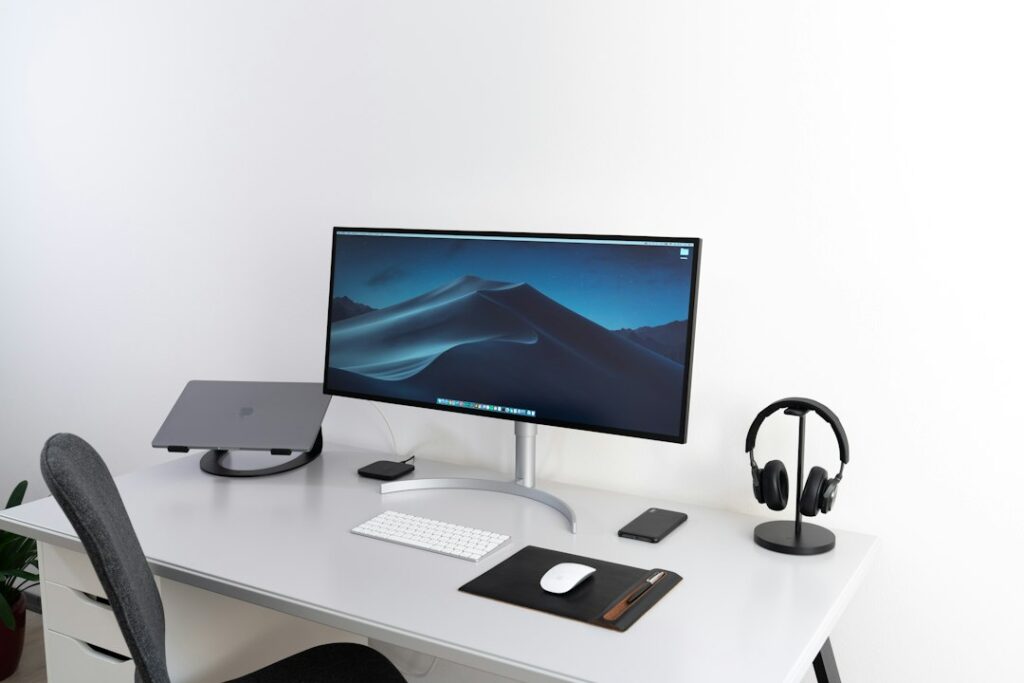
Best portable monitors give you a second screen without the bulk of a traditional desktop setup, letting you boost productivity on the go or enjoy a larger canvas for gaming.
Key Takeaways
- Identify your primary use case – travel, gaming, or design – to narrow the field.
- Screen size, resolution, and refresh rate matter most for each scenario.
- Look for USB‑C power delivery and built‑in stand for true portability.
- Budget ranges: $150‑$250 for basic models, $300‑$500 for high‑refresh gaming screens.

Which portable monitor suits a traveling executive?
Executives need a lightweight screen that plugs straight into a laptop via USB‑C, offers at least Full HD (1920×1080) resolution, and has a built‑in stand to avoid a separate tripod. Models under $250 that meet these criteria typically weigh under 1.5 lb and consume less than 30 W, so you can run them off a laptop’s power delivery.
If you value color accuracy for presentations, choose a panel with an IPS layer and a 100 % sRGB gamut. The trade‑off is slightly higher price, but the visual consistency is worth it for client‑facing decks.
What should gamers look for in a portable monitor?
Gaming on the move demands a high refresh rate (120 Hz or more) and low response time (5 ms or less). A 1080p resolution keeps the graphics card’s load manageable, while adaptive‑sync technology (FreeSync or G‑Sync compatible) reduces tearing.
Because gaming sessions can drain a laptop’s battery, pick a monitor that supports USB‑C Power Delivery (PD) of at least 60 W, or bring a dedicated power bank. A sturdy, fold‑away stand prevents wobble when you’re on a coffee shop table.
Are there portable monitors built for graphic designers?
Designers need color fidelity above all. Look for a monitor with a 4K (3840×2160) panel, an IPS or OLED layer, and factory‑calibrated color profiles. A wide color gamut (100 % sRGB, 95 % DCI‑P3) ensures your work looks the same on client screens.
Since 4K models consume more power, a USB‑C PD of 90 W or higher is advisable. Some units include a built‑in color‑calibration sensor, which can save you a separate hardware calibrator.
How do I compare size versus portability?
Portable monitors range from 13 inches to 17 inches. A 13‑inch screen is truly travel‑ready – fits in a laptop bag and adds minimal weight. A 15‑inch model offers a more comfortable workspace without a huge size penalty, while 17‑inch screens start to feel like a mini‑desktop.
Use this quick decision rule: if you travel more than twice a month, stay at 13‑inch; if you work from coworking spaces daily, a 15‑inch strikes a balance; if you mainly use a stationary desk but want a secondary screen for occasional trips, a 17‑inch is acceptable.
What are the most common pitfalls when buying a portable monitor?
- Choosing a monitor without USB‑C PD and relying on a separate power adapter.
- Overlooking the stand mechanism – some fold‑flat designs require a separate clip.
- Assuming a higher resolution always means better performance; 4K on a low‑powered laptop can cause lag.
- Ignoring the warranty period; many models only offer a one‑year limited warranty.
Which models did PCMag test for 2026?
PCMag’s testing covered a range of models aimed at different user types. While the article does not list each model, it confirms that the selection includes options for traveling executives, graphic designers, and gamers, each evaluated for screen quality, connectivity, and portability.PCMag review
What does Wirecutter recommend for overall value?
Wirecutter’s 2026 roundup focuses on value‑for‑money, highlighting a monitor that balances price, performance, and durability. Their chosen model offers a 15‑inch IPS panel, 1080p resolution, and USB‑C PD up to 65 W, making it a solid all‑rounder for most professionals.Wirecutter guide
Which monitor is best for gamers according to Tom’s Hardware?
Tom’s Hardware emphasizes high‑refresh gaming monitors. Their top pick features a 15.6‑inch 1080p panel, 144 Hz refresh rate, and FreeSync support, all powered via USB‑C. The review notes that this monitor delivers smooth gameplay without needing a separate graphics card connection.Tom’s Hardware analysis
How to set up a portable monitor for maximum ergonomics?
1. Position the monitor at eye level using the built‑in stand or a portable riser.
- Keep the screen about an arm’s length away (20‑30 inches) to reduce eye strain.
- Adjust brightness and color temperature to match ambient lighting.
- Use a USB‑C hub with power delivery if your laptop’s port is limited.
These steps work for any model and help you avoid neck or shoulder pain during long sessions.
What accessories enhance the portable monitor experience?
- USB‑C hub with PD and multiple video outputs.
- Fold‑away keyboard for a true laptop‑replacement setup.
- Protective sleeve to guard the screen during travel.
- Adjustable stand if the built‑in stand doesn’t meet your height preference.
Where can I buy a reliable portable monitor?
Major retailers such as Amazon, Best Buy, and B&H Photo Video carry the models mentioned above. Check the seller’s return policy and warranty details before purchasing. For a quick comparison of current prices and availability, you can browse the Right Scoop blog for related tech reviews.

How USB-C bandwidth limits your screen choice
Before you fall in love with a sleek, cable-free setup, check the specs of both your laptop and the monitor. Many portable monitors advertise support for USB-C video, but the actual data transfer rate matters more than the port shape. A single USB-C cable can only carry so much data.
If you want to run a 4K resolution at 60Hz, you need a connection that supports DisplayPort Alt Mode at version 1.2 or higher. Older laptops might only support 4K at 30Hz, which will make text look blurry and animations stutter.
Check the power delivery specs
Power delivery (PD) is the second piece of the puzzle. Some monitors can power themselves from the same USB-C cable that sends video. This is convenient for travel, but it depends on your laptop providing enough wattage.
If your laptop outputs 45W and the monitor needs 65W, the video signal will often drop to prevent damage. Always verify the wattage requirements in the manual. If the numbers don’t match, you will need a separate power brick for the monitor, which defeats the purpose of a single-cable setup.
Why panel type matters more than brand name
Most budget portable monitors use IPS panels. They offer good viewing angles and decent colors, which is fine for document editing and web browsing. However, if you are editing photos or video, you need to look at color accuracy metrics. Look for a model that advertises 100% sRGB coverage as a baseline.
For more demanding work, seek out panels that cover at least 95% of the DCI-P3 color space. This ensures that the vibrant colors in your footage translate correctly to other screens.
Understanding response times for gaming
For gaming, the refresh rate is the primary spec. A 60Hz panel is standard, but 120Hz or 144Hz panels make scrolling and movement feel significantly smoother. The response time, measured in milliseconds, determines how quickly pixels change color. A 1ms response time reduces motion blur, which helps in fast-paced shooters. However, a 3ms panel is often indistinguishable to casual users and costs less. Do not overspend on a 1ms panel if you do not play competitive esports titles.
Common setup mistakes that ruin the experience
Many users buy a portable monitor and immediately plug it in, only to find the screen is dark or flickering. This is usually a driver issue. Windows and macOS often need a specific driver update to recognize the monitor properly. Go to the manufacturer’s website and download the latest driver for your operating system. Do not rely on the generic drivers that come with the OS. This step takes five minutes but prevents hours of troubleshooting.
Managing audio routing
Portable monitors rarely have built-in speakers of high quality. Some have no speakers at all. If you are using the monitor for video calls, you need to ensure your audio is routed to your laptop’s speakers or a headset, not the monitor.
In Windows, right-click the speaker icon and select “Open Sound Settings.” Choose your primary playback device. If you leave it on “Default,” the system might try to send audio to the monitor, resulting in silence. This is a frequent oversight that leads users to think the monitor is broken.
Choosing the right stand for long sessions
The flip-down kickstand on most portable monitors is designed for quick glances, not for eight-hour workdays. It offers very limited height adjustment and can wobble if you type while looking at the screen. For a permanent desk setup, invest in a dedicated monitor arm.
A gas-spring arm allows you to position the screen at eye level, which reduces neck strain. Look for an arm with VESA mount compatibility. Most portable monitors come with a VESA plate or a simple adapter. If the arm costs more than the monitor, it is a sign that you are buying a high-end model.
For budget options, a simple desk riser with a tilt function is a viable alternative.
- Eye level: The top of the screen should be at or slightly below your eye level.
- Distance: Keep the screen about an arm’s length away to reduce eye strain.
- Angle: Tilt the screen back slightly to reduce glare from overhead lights.
FAQ
Do portable monitors work with MacBooks?
Yes. As long as the monitor supports USB‑C with DisplayPort Alt Mode, it will work with any MacBook that has a USB‑C port.
Can I use a portable monitor with a smartphone?
Some monitors support USB‑C video output from Android phones, but performance varies. Check the monitor’s specifications for “mobile compatibility.”
Is a 4K portable monitor worth the extra cost?
If you need precise color work or a larger workspace, 4K can be beneficial. For general productivity or gaming, 1080p usually provides a smoother experience on most laptops.